Website Design · 5 min read
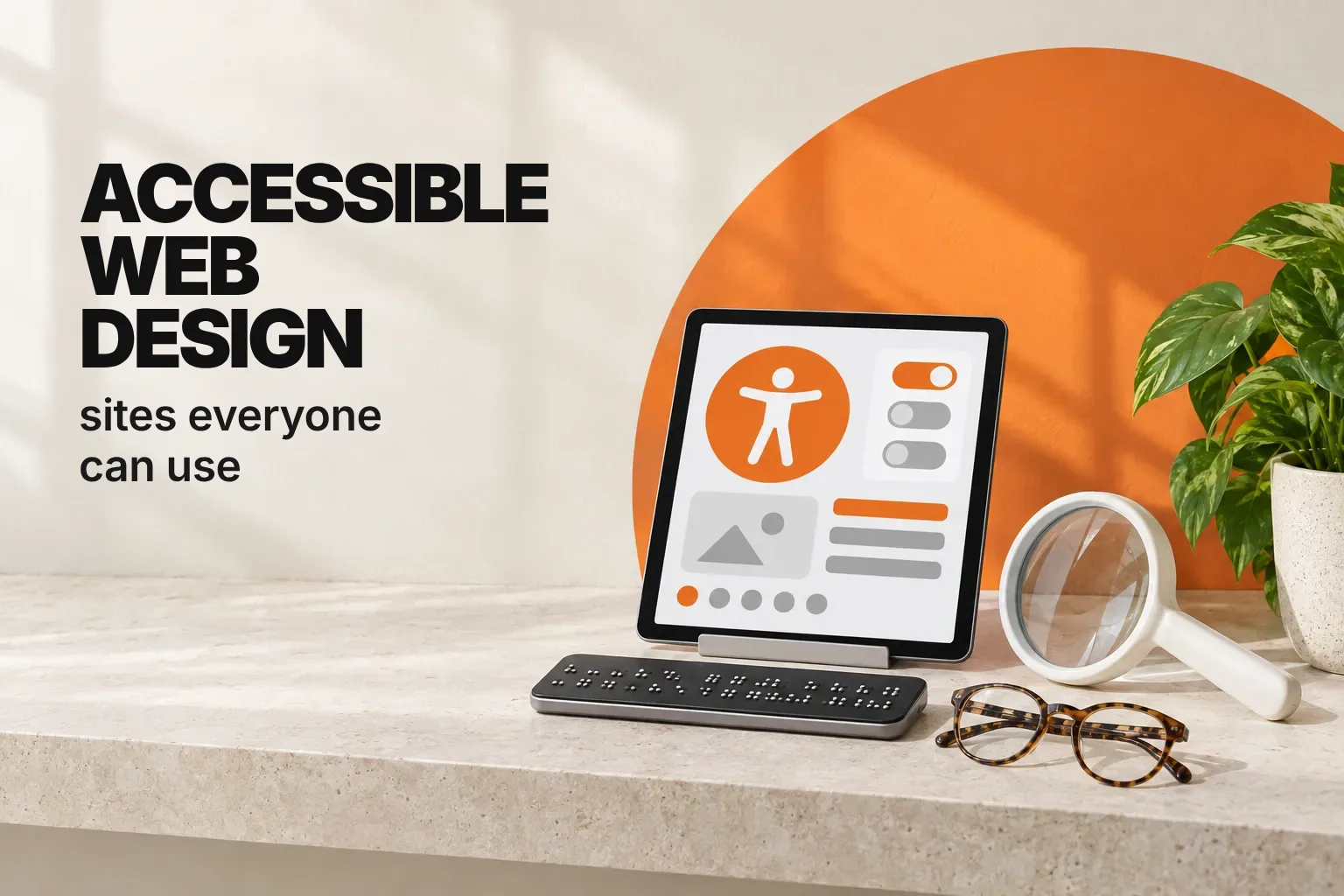
Accessible Web Design That Vaughan Businesses Can Be Proud Of
 By Adrian Martinez · · Updated

On this page
- What Is Accessible Web Design?
- Ontario Accessibility Guidance for Vaughan Businesses
- Key Accessibility Checks for Your Website
- What Accessibility Can and Cannot Tell You About SEO
- A Practical Audit and Improvement Plan
- Working with a Web Design Provider
- Maintaining Accessibility as Content Changes
- Frequently Asked Questions
Accessible web design helps customers use your website with a keyboard, screen reader, magnification or other assistive technology. For a Vaughan business, the practical goal is straightforward: people should be able to understand your services and complete important tasks without avoidable barriers.
This guide covers useful checks for an existing website, Ontario resources to consult and a sensible way to plan improvements. For help with a project, see my Vaughan web design services.
What Is Accessible Web Design?
Accessibility concerns how people perceive information, operate controls, understand content and use a site across technologies. A page can look polished and still fail when someone opens a menu with a keyboard, enlarges the text or asks a screen reader to identify a form field.
Start with the tasks your customers actually need to complete: finding service details, reading a menu, requesting a quote, booking or contacting your team. Test the whole task, including errors and confirmation messages.
Ontario Accessibility Guidance for Vaughan Businesses
Vaughan is in Ontario, so Ontario guidance is the relevant starting point for this discussion. Review the provincial guide to making websites accessible and the requirements that apply to your organization under the Accessibility for Ontarians with Disabilities Act (AODA).
Do not assume every organization or piece of content has the same legal obligations. Check the applicable scope, standards and exceptions in the official guidance, and obtain qualified advice if you need a compliance determination. A checklist or automated scan alone does not establish legal compliance.
Regardless of the legal scope, removing barriers can make everyday tasks easier for your customers. Set an explicit accessibility target for a project and include it in the design, build and review process.
Key Accessibility Checks for Your Website
Headings and Page Structure
Use headings to describe the organization of the page. Keep their hierarchy logical and choose heading levels for meaning rather than font size. Use native links, buttons, lists and form controls for their intended purpose. Add ARIA only when it is needed and verify that it does not conflict with the native semantics.
Keyboard Navigation and Visible Focus
Try the main customer tasks without a mouse. You should be able to reach and operate links, menus, buttons, dialogs and forms in a sensible order. Focus needs to remain visible, and a dialog should allow users to leave it and return to the expected location. Check that sticky headers or overlays do not hide the focused control.
Readable Text and Colour
Check text and control contrast against the accessibility standard you are targeting. Do not rely on colour alone to communicate errors, availability or selected states. Test enlarged text and narrow screens so content does not overlap, disappear or require unnecessary horizontal scrolling.
Useful Image Alternatives
Choose alternative text according to what an image contributes in its context. The W3C WAI Images Tutorial distinguishes informative, decorative, functional and complex images:
- Informative images: briefly describe the information the reader needs.
- Decorative images: use an empty alternative,
alt="", when they add no information. - Linked images and image buttons: explain the destination or action.
- Charts and other complex images: provide an appropriate text explanation of the important information.
Do not insert “Vaughan web design” into every image description. Mention a location only when it helps communicate the image’s actual purpose.
Forms People Can Complete
Give each control an appropriate visible label, with a programmatic association to its input. Keep control IDs unique. Explain required information and errors in text, and make error messages available to assistive technology. Test keyboard movement, validation, any multi-step transitions and the success state in a safe test environment.
Video and Audio
Plan captions, transcripts and descriptions of relevant visual information according to the media and accessibility target. Review generated captions for accuracy, especially names and instructions. Make sure the player itself can be operated with a keyboard.
What Accessibility Can and Cannot Tell You About SEO
Descriptive headings, useful text and clear navigation can help people and search engines understand a page. That overlap does not mean an accessibility change guarantees higher rankings, more sales or a particular percentage improvement.
Measure the problem you are fixing. For example, verify that a customer can complete the enquiry form with a keyboard and that each field has a meaningful accessible name. Review search and conversion data separately, without attributing every movement to the latest change.
A Practical Audit and Improvement Plan
- Choose a representative set of pages. Include the homepage, services, contact forms and any key booking or purchasing journey.
- Run an automated scan. Use the results to locate potential problems, then check their context. A clean automated report does not prove the site is accessible.
- Test manually. Review keyboard access, focus, labels, text enlargement, contrast and the information conveyed by images and media.
- Include assistive-technology testing and user feedback. Ask people with relevant experience to test important tasks when possible.
- Prioritize barriers. Address problems that block essential tasks and shared components that affect many pages.
- Retest and document. Record the affected page, the issue, the change and the verification result. Check again after template, plugin or content changes.
Working with a Web Design Provider
Ask a provider which standard they will test against, what manual checks are included and how issues will be recorded and resolved. Request examples of their work and evidence for any certifications or results they claim. Clarify who will review content and maintain accessibility after launch.
If you are planning a new site or improvements to an existing one, my Vaughan web design page explains the service and how to discuss your requirements. Agree on the scope of accessibility testing before the work begins.

Maintaining Accessibility as Content Changes
Give editors practical guidance on headings, link text, images and media. Include accessibility checks in your publishing process and provide a clear way for customers to report problems. Retest shared components after updates and keep a record of outstanding work.
Frequently Asked Questions
How can I tell whether my Vaughan website is accessible?
Combine automated checks with manual testing and feedback from people who use assistive technology. Test complete customer tasks. A scanner score alone does not establish accessibility or legal compliance.
Does every image need a description?
No. Informative and functional images need appropriate alternatives, while purely decorative images normally use an empty alternative. Choose based on the image’s purpose in the page.
Will an accessibility plugin fix everything?
A tool may help identify or address some problems, but the underlying content, markup and interactions still need review. Verify the resulting experience instead of relying on a badge or score.
Where should I start with an older website?
Begin with navigation, key service information and the contact or booking journey. Fix blocking issues first, then plan the remaining work in manageable stages.
Does accessibility guarantee better search rankings?
No. Improve accessibility so people can use the site. Track search visibility as a separate outcome and avoid promises about rankings or revenue.
Discuss your Vaughan website project and the accessibility requirements you want included.
Keep reading
More on Website Design.
WordPress vs Astro: 7 Essential Differences for Business Sites
WordPress vs Astro for a business website: how editing, speed, upkeep and online stores compare, plus...
What Makes a Good Website? 12 Essential Features That Convert
What makes a good website is clarity, speed, real mobile behaviour and one obvious next step. Here are...
Website Redesign Checklist: 12 Things to Check Before You Launch
A website redesign checklist covering redirects, page speed, and SEO checks to verify before launch,...